Find a recipient’s documents
Search by recipient name or email, then narrow the list to sent, completed, draft, expired or cancelled packets.
THE PRODUCT TOUR
Explore five steps without creating an account or sending a document. Screenshots use an isolated test workspace. Names and documents are fictional; available features depend on your plan.
STEP 1 OF 5
Start a new packet with PDF files or supported Word files. Give it a clear name, add recipients, and check the converted pages.
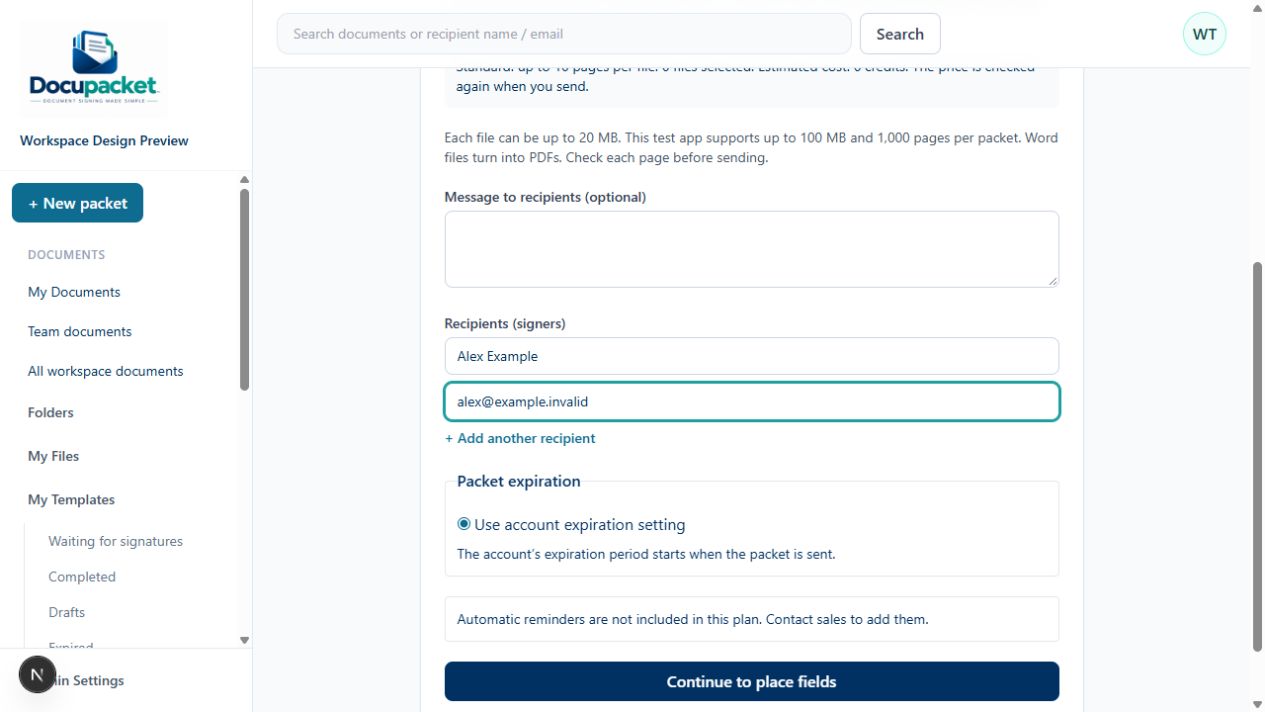
This fictional PDF illustrates filled fields and a typed name. It was not signed through Docupacket and is not a real agreement or signature certificate.
Download fictional sample PDFYOUR WORKSPACE, ORGANIZED
Search by recipient name or email, then narrow the list to sent, completed, draft, expired or cancelled packets.
Use personal folders for your work and Team folders organized by document type, client or project.
Workspace administrators can access workspace documents and choose which members can open each Team folder.
Check available credits in Usage and review your membership, renewal information and payment history in Payments.
Submit a support request through Get Support. Keep the ticket number and reply to the support email while the ticket remains open.
Features and team seats vary by plan. Folder access stays within your organization.